Getting Started with ResumeUp.AI
Learn how to sign up, set up your account, and create your first AI-generated resume quickly and easily.
Prerequisites
Ensure you have:
- A valid email address or Google/LinkedIn account for sign-up
- Basic professional details ready (work experience, skills, education)
- A modern web browser like Chrome or Firefox
ResumeUp.AI works entirely in your browser. No downloads required.
Sign Up for Your Account
Getting started takes under 2 minutes. Choose your preferred sign-up method.
- Visit https://resumeup.ai
- Click Sign Up and enter your email
- Set a secure password
- Verify your email via the confirmation link
Click Continue with Google on the sign-up page. Grant permissions for profile access.
Select Continue with LinkedIn to import your profile data automatically.
After sign-up, you'll land on the dashboard. Bookmark https://app.resumeup.ai/dashboard for quick access.
Navigate the Dashboard
The dashboard provides one-click access to all tools.

Key sections:
- Resume Builder: Create new resumes
- Templates: Browse 20+ ATS-friendly designs
- Job Tracker: Manage applications
- ATS Scanner: Check compatibility
Create Your First AI Resume
Follow these steps to generate your resume.
Select a Template
From the dashboard, click New Resume.
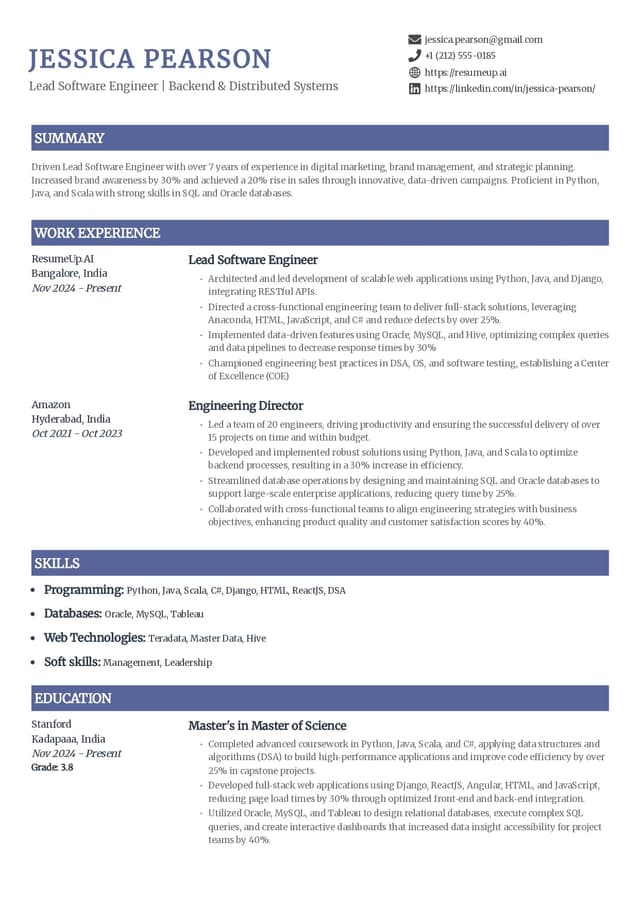
Browse categories like Modern, Creative, or Executive. Pick one, e.g., Catalyst.
Input Your Details
Fill in sections:
- Personal info (name, contact, LinkedIn)
- Professional summary
- Work experience (job title, company, dates, achievements)
- Skills and education
Use AI suggestions by clicking Generate with AI next to each field.
Generate & Optimize
Click Generate Resume. Review AI enhancements.
Run ATS Check to ensure <95% compatibility score.
Download
Export as PDF or Word. Share via link or upload to job sites.
Next Steps
Customize Further
Tailor templates, add sections, and optimize for specific jobs.
Job Tracking
Organize applications and set reminders.
Interview Prep
Practice with AI-generated questions.
You're now ready to build standout resumes with ResumeUp.AI!
Last updated today